The best decision you can make as a Windows user isn’t to wait for Microsoft to improve, but to take control of your computing experience.
If you’re reading this, you’re probably already considering making the jump from Windows to Linux. Maybe you’re tired of forced updates, privacy concerns, declining performance on older hardware, or you simply want to explore alternatives. The good news is that migrating to Linux has never been easier than in 2025.
In recent months, we’ve witnessed a massive exodus of Windows users to Linux, especially toward distributions specifically designed to make this transition seamless. The news is full of stories about thousands of users who finally said “enough” and discovered that Linux isn’t the complicated monster they thought it was.
In this article, I’ll guide you through the best Linux distributions for migrating from Windows, organized from easiest to most advanced. We’ll focus especially on the two most popular options for beginners: Zorin OS and Ubuntu, and we’ll also explore other interesting alternatives.
Why now is the best time to migrate?
Before diving into specific distributions, it’s important to understand why 2025 is the perfect year to make the switch. Hardware compatibility has reached unprecedented levels, with drivers for modern hardware better supported than ever. You no longer need to be an expert to get your graphics card, Wi-Fi, or printer working correctly.
Gaming, traditionally Linux’s Achilles’ heel, has experienced a revolution thanks to Steam Deck and Proton technology. Today you can play thousands of Windows games natively on Linux without complex configurations. Most popular applications have Linux versions or excellent alternatives that work just as well or better than their Windows counterparts.
Modern interfaces in today’s distributions are as polished as Windows or macOS, eliminating the stigma that Linux looks outdated or complicated. And perhaps most importantly: the Linux community is stronger and more welcoming than ever, with active forums, abundant tutorials, and users willing to help every step of the way.
Zorin OS: The perfect transition from Windows
Why is Zorin OS exploding in popularity?
Zorin OS has become the go-to distribution for users migrating from Windows, and it’s no coincidence. Recent statistics show that tens of thousands of users are choosing Zorin OS as their first Linux experience, and the reason is simple: it’s specifically designed to make you feel at home.
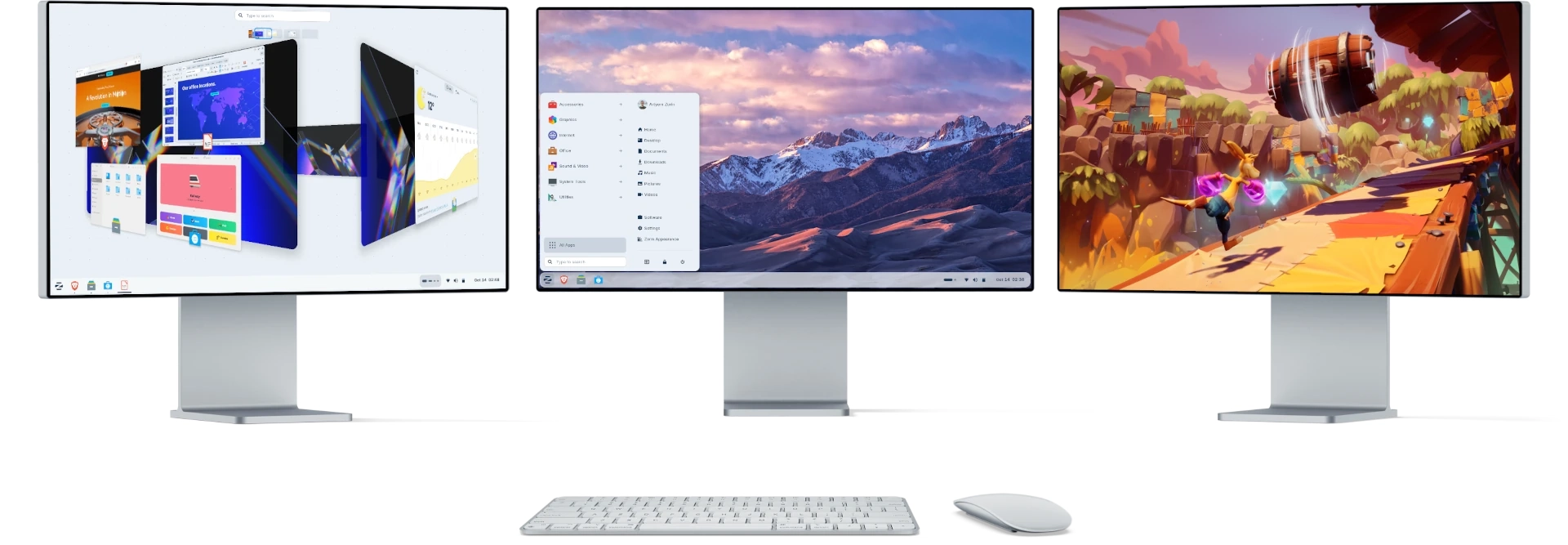
What sets Zorin OS apart from other distributions is its philosophy from the get-go: they don’t want you to learn a completely new system, but rather to continue being productive while gradually familiarizing yourself with Linux. It’s like moving to a new house that already has all your furniture placed exactly where you had it before.
The interface that adapts to you
The most remarkable aspect of Zorin OS is its ability to mimic Windows’ appearance without sacrificing functionality. We’re not talking about a crude imitation, but a carefully designed experience that respects your muscle memory from years of using Windows.
The Zorin Appearance app is the heart of this flexibility. With a few clicks, you can completely change your desktop layout. Do you prefer the Windows 11 interface with the start menu in the bottom-left corner? You got it. Are you nostalgic and miss Windows 7? It’s available too. There’s even a layout inspired by macOS if you’re coming from the Apple ecosystem, or pure GNOME for when you’re ready for the unadulterated Linux experience.
This adaptability means your transition can be as gradual as you want. You can start with a desktop that looks exactly like what you know and, over time, experiment with other configurations at your own pace.
Everything works from the first boot
One of the historic frustrations with Linux has been the need to configure the system after installation. Zorin OS completely eliminates this problem. From the moment you log in for the first time, everything is ready to work.
Multimedia codecs come pre-installed, which means you can play any audio or video format without searching for additional packages or following complex tutorials. LibreOffice is already there, offering you a complete office suite fully compatible with Microsoft Office formats. Your favorite web browser is configured and ready, and the software center is as intuitive as the Windows Store, but with thousands of professional-quality free applications.
This attention to detail extends to aspects that many distributions overlook. Fonts are configured to look good from the start, themes are consistent across all applications, and default settings are sensible for users coming from Windows.
The million-dollar question: Will my programs work?
This is probably the biggest concern for anyone considering migration, and Zorin OS addresses it head-on. The system comes with Wine pre-configured, a compatibility layer that allows many Windows applications to run directly on Linux. It’s not perfect for all applications, but it works surprisingly well with productivity software, small tools, and many programs that don’t have clear Linux alternatives.
Zorin OS goes further by including Windows App Support, a simplified system that lets you install some .exe programs with a double-click, just like you would in Windows. When this isn’t possible, the system is smart: it suggests Linux alternatives for your Windows applications, often better than the originals.
The reality is that most users discover they don’t need Wine as much as they thought. Modern Linux alternatives are incredibly capable, and many popular applications like Chrome, Spotify, Discord, Steam, or VS Code have native Linux versions that work just as well or better than on Windows.
Performance that breathes new life into your hardware
If there’s one thing that immediately impacts you when switching to Zorin OS, it’s the performance. Even in its full edition with visual effects, the system is noticeably lighter than Windows. Where Windows 11 consumes between 4 and 6GB of RAM just being on, Zorin OS runs comfortably with less than 2GB.
This isn’t an unimportant technical detail. It means your PC feels faster, more agile, more responsive. The system boots in seconds on modern hardware, applications open instantly, and you can have dozens of programs open without the system slowing down.
For users with older hardware, Zorin OS offers something even more valuable: the possibility of reviving computers that Windows has already declared obsolete. 8 to 10-year-old laptops that crawl with Windows 10 feel like new again with Zorin OS.
The three faces of Zorin OS
Zorin OS recognizes that not all users have the same needs or the same hardware, so it offers three different editions. Zorin OS Core is the main edition and recommended for most users. It’s completely free and comes with everything you need: modern Windows 11-style interface, all essential applications pre-installed, and configurations optimized for modern hardware. This is the version you should choose if your computer is less than 5 years old and you want the complete experience.
For those with older or limited hardware, there’s Zorin OS Lite. This edition is specifically optimized for modest-resource computers, running perfectly with just 512MB of RAM. It doesn’t sacrifice functionality, it simply uses a lighter desktop environment and foregoes some visual effects. It’s perfect for PCs over 8 years old that still have useful life but that Windows has left behind. The interface remains modern and functional, just more austere in resources.
Finally there’s Zorin OS Pro, the paid version that costs €39 as a one-time purchase (not a subscription). This edition includes additional layouts like Windows 7 and macOS, pre-installed premium applications, and priority support from the development team. More important than the extra features, buying Zorin OS Pro is a way to support the ongoing development of the project. If you find Zorin OS valuable and want to ensure its future, this is your way to contribute.
Is Zorin OS for you?
Zorin OS shines especially in certain scenarios. It’s practically perfect if this is your first Linux experience and you don’t want surprises or steep learning curves. If you value things simply working without needing configurations or tweaks, Zorin OS meets that requirement better than any other distribution.
The familiarity of its interface makes it ideal for users who want immediate productivity without relearning how to do basic tasks. If you occasionally need to run some Windows application without a clear Linux alternative, the integrated Wine support makes the process much less painful. And if your hardware is more than 5 years old but you don’t want to complicate your life with ultra-light and spartan distributions, Zorin OS Lite offers the perfect balance between performance and usability.
A surprisingly simple installation process
One of the biggest psychological barriers to migrating to Linux has always been the fear of installation. Zorin OS completely eliminates this obstacle with a process that, honestly, is simpler than installing Windows.
It all starts with downloading the ISO image from zorin.com and creating a bootable USB with free tools like Rufus on Windows or Etcher on any platform. Once you have the USB, you boot your computer from it and Zorin OS runs without installing anything, allowing you to try the complete system, browse the internet, open documents, and experiment freely, like a test drive without commitment.
If you decide to continue, a single click on Install Zorin OS starts a visual wizard that guides you step by step. The installer is smart: it detects if you have Windows installed and offers to install alongside it in dual boot mode, keeping both systems available. You can also choose to completely replace Windows if you’ve already decided to take the definitive leap, or manually partition if you have technical knowledge and prefer total control. Twenty minutes later, you have a fully functional and customized system.
The first moments with your new system
What happens after installation is where Zorin OS really demonstrates its attention to the user. Instead of leaving you alone in front of an unfamiliar desktop, the system welcomes you with an interactive tour that shows you exactly where everything is. It teaches you how to update the system, where to find your applications, how to install new software from the app center, how to customize the appearance to your liking, and where to get help if you need it.
This tour isn’t condescending or unnecessary. It’s genuinely useful because, although Zorin OS looks like Windows, it’s not identical. Small differences in how things are organized can be confusing at first, and the tour eliminates that initial friction that could make a new user feel lost.
Another of the most recommended alternatives is…
Ubuntu: The gold standard for beginners
If Zorin OS is perfect for those seeking familiarity with Windows, Ubuntu is perfect for those who want to start with the “real” Linux experience but without complications. Ubuntu represents the ideal middle ground: polished enough to be accessible, but “Linux” enough that you learn the real ecosystem you’ll use on servers, professional development, and the rest of the Linux world.
The power of being the most popular
Ubuntu is the most popular distribution in the Linux world, and that popularity isn’t accidental or superficial. It’s the result of years building a complete ecosystem that makes Ubuntu the safest choice for new users. When millions of people use the same distribution, network effects are impossible to ignore.
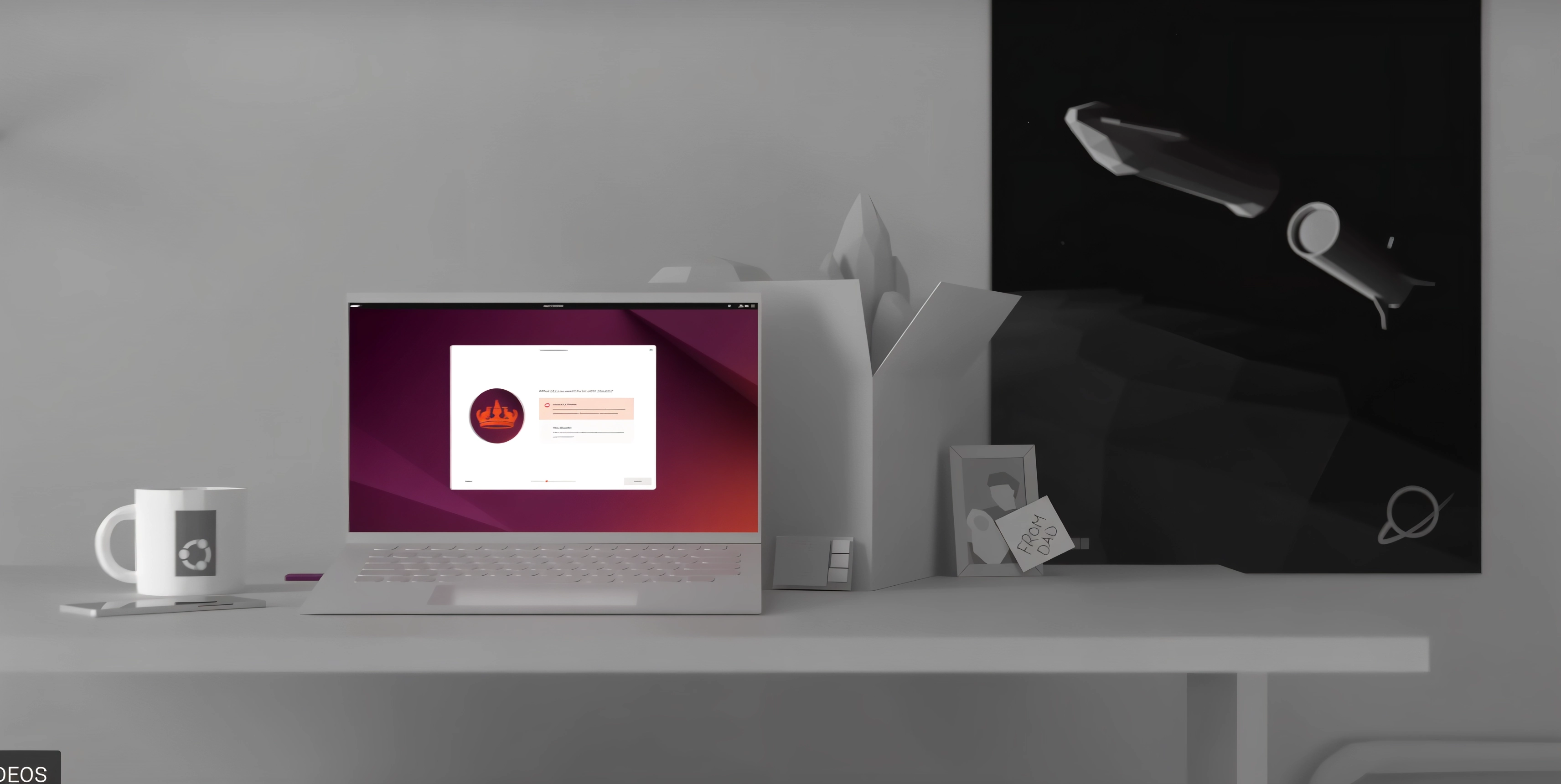
The Ubuntu community is, simply put, gigantic. This means that any problem you encounter, any question you have, any configuration you want to do, someone has already done it before and documented the solution. Sites like Ask Ubuntu have answers for practically everything, official forums are active 24 hours a day, and the English-speaking community is especially robust. You’re not alone exploring unknown territory: there are millions of people who already traveled that path and left detailed maps.
Compatible with absolutely everything
Ubuntu’s popularity creates another crucial effect: it’s the primary target of practically everyone in the Linux ecosystem. If a company develops software for Linux, they do it first for Ubuntu. If a hardware manufacturer bothers to create Linux drivers, they test them first on Ubuntu. If a tech startup offers Linux support, that support is specifically for Ubuntu.
In practical terms, this means that Steam, Discord, Spotify, VS Code, Slack, Zoom, and practically any application that has a Linux version has official packages for Ubuntu. NVIDIA graphics card drivers, historically problematic on Linux, work better on Ubuntu than on any other distribution. Printers, scanners, webcams, and strange peripherals are more likely to work smoothly on Ubuntu simply because manufacturers tested them there.
Predictable stability with LTS
Ubuntu has a release cycle that deserves explanation because it’s fundamental to your experience. Canonical, the company behind Ubuntu, releases a new version every six months, but not all versions are equal. Every two years, they launch an LTS (Long Term Support) version that receives five full years of security updates and bug fixes.
The current LTS version is Ubuntu 24.04, released in April 2024, and this is the one you should choose if you’re coming from Windows. It’s designed for stability and longevity, not for experimentation. Interim versions are for users who want the latest features and don’t mind updating every six months. For someone migrating from Windows, an LTS is the obvious choice: install and forget for years while receiving automatic security updates.
GNOME: A different desktop philosophy
Ubuntu uses GNOME as its desktop environment, and this is where Ubuntu clearly diverges from Windows. GNOME doesn’t try to look like Windows. It has its own design philosophy focused on minimalism, productivity, and modern workflows. The side “Dash” gives you quick access to favorite applications, the “Activities Overview” lets you see all your windows and workspaces simultaneously, and the entire system is designed to be efficient with keyboard, mouse, or touchscreen.
This difference can be disconcerting the first few days. There’s no traditional start button, the taskbar works differently, and many Windows conventions simply don’t apply. But there’s a reason millions of professional users prefer GNOME: once you get past the initial learning curve, the workflow is incredibly efficient. Virtual workspaces, smart application searches, and well-thought-out keyboard shortcuts make you more productive than on Windows.
If GNOME feels too strange at first, the Ubuntu ecosystem has official variants with different desktops. Kubuntu uses KDE Plasma, which is more similar to Windows and highly configurable. Xubuntu uses XFCE for lighter hardware with a traditional interface. Ubuntu MATE offers a classic and intuitive desktop. All share Ubuntu’s solid foundation but with different interfaces.
Installation that doesn’t intimidate
Ubuntu’s installation process is surprisingly similar to Zorin OS because, in fact, Zorin OS is based on Ubuntu and uses the same installer. You download Ubuntu 24.04 LTS from ubuntu.com, create a bootable USB, boot from it to try the system without installing, and if it convinces you, the visual wizard guides you through installation.
The difference is in what happens after installation. Ubuntu doesn’t hold your hand as much as Zorin OS. After installation, you’ll have to manually update the system with a terminal command: sudo apt update && sudo apt upgrade. This is your first real contact with the Linux terminal, and it’s a gentle reminder that Ubuntu expects you to learn the system, not use it as if it were Windows. If you dare to try commands at this point, we have a guide so you can learn the most essential ones.
Zorin OS vs Ubuntu: The decision you must make
At this point, you’re probably wondering which of the two main options to choose. The honest answer is that both are excellent choices, but they serve slightly different needs.
Zorin OS wins on familiarity and immediate readiness. Its interface is practically identical to Windows, which means zero learning curve for basic tasks. It comes completely pre-configured, with all codecs, fonts, and essential applications ready from the first boot. For older hardware, its Lite edition is unbeatable, reviving PCs that Ubuntu would consider too modest. It’s the path of least resistance: you install and work.
If you’ve used Windows your entire life, this is your choice.
Ubuntu wins on ecosystem and future. Its community is monumentally larger, which translates to more tutorials, more forum answers, more officially supported software, and more hardware and peripheral compatibility. For gaming, Ubuntu is technically superior due to manufacturer and developer support. As an industry standard, learning Ubuntu opens professional doors: most web servers, development platforms, and corporate Linux environments are based on Ubuntu (Debian) or its derivatives.
If you’ve used other operating systems like macOS in addition to Windows and/or have basic technical knowledge, Ubuntu should be your choice.
The choice comes down to a simple question: do you want the smoothest possible transition where everything works as you expect from the start, or are you ready for a small learning curve in exchange for the best support and the most established platform in the Linux world? If your answer leans toward the first option, Zorin OS is your distribution. If you lean toward the second, Ubuntu awaits you.
Beyond the big two: There are other alternatives
Although Zorin OS and Ubuntu dominate recommendations for new users, the Linux world is rich in alternatives that deserve mention. These distributions aren’t better or worse, they simply serve different philosophies and needs.
Linux Mint: Useful nostalgia
Linux Mint occupies an interesting space in the ecosystem. Based on Ubuntu, it inherits all its software compatibility and community support, but wraps it in an interface that deliberately recalls Windows 7. Its Cinnamon desktop environment is familiar, traditional, and comforting for those who grew up with classic Windows conventions.
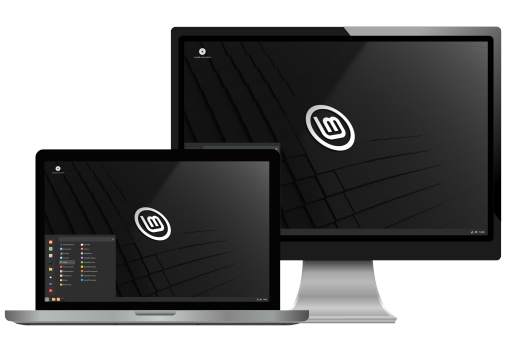
Mint is ultra-conservative in its approach. It prioritizes absolute stability over shiny new features, making it perfect for users who simply want their computer to work without surprises. Like Zorin OS, it comes with all multimedia codecs included and a set of proprietary tools that simplify system administration.
The ideal audience for Linux Mint is users who miss Windows 7, consider Windows 10 and 11 a step backward in terms of interface, and have no interest in modern or minimalist designs. If you describe your ideal PC as “looks like it always looked,” Mint is your distribution.
elementary OS: When design matters
At the opposite end of the spectrum is elementary OS, a distribution that prioritizes elegance and simplicity with obvious inspiration from macOS. It doesn’t try to look like Windows or offer a thousand configuration options. Its philosophy is “less is more,” with a carefully curated experience where every visual detail is polished to the extreme.
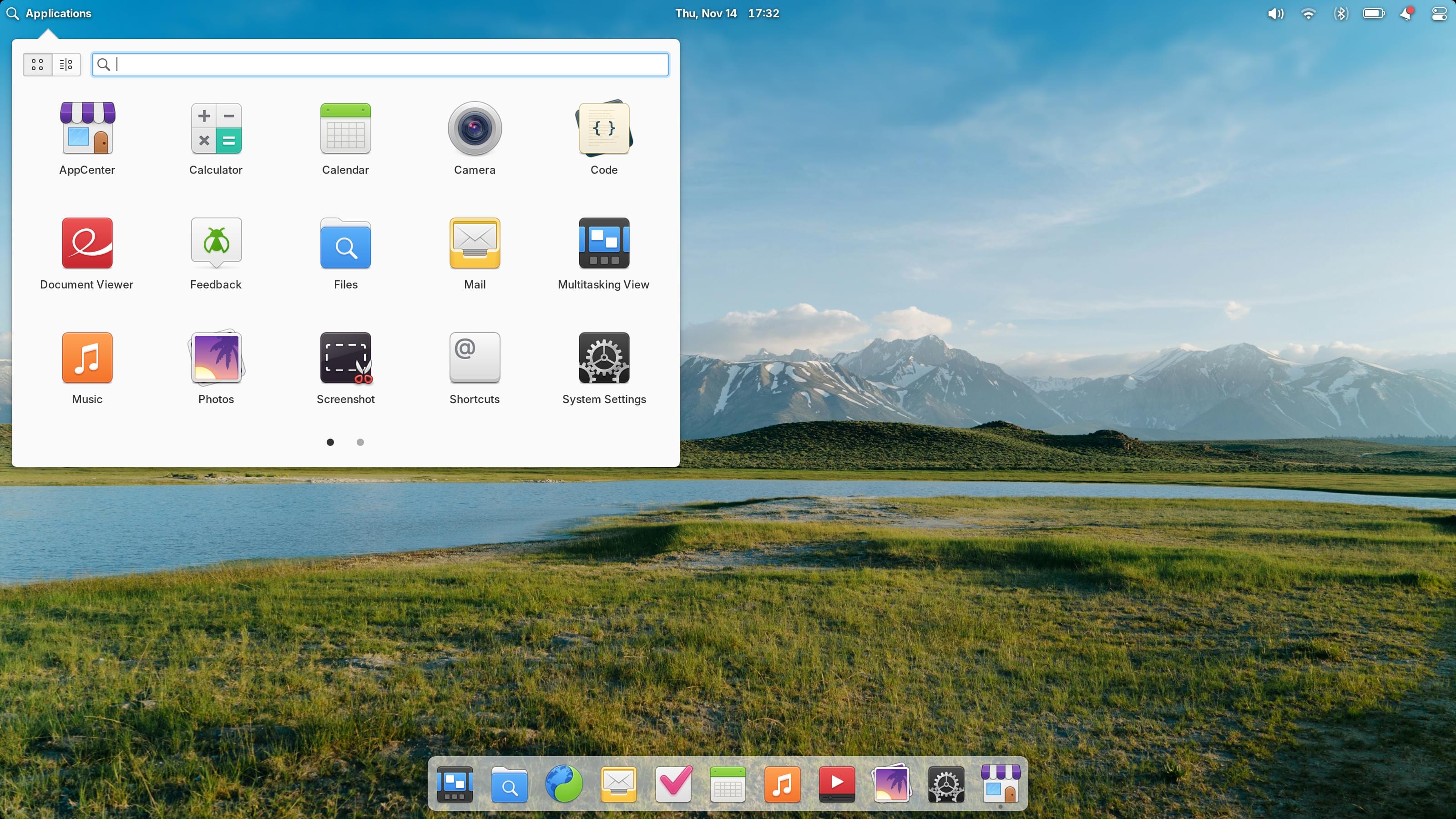
elementary OS’s AppCenter isn’t simply an app store: it’s a curated selection of software that meets strict design and functionality standards. Native elementary OS applications are beautiful and cohesive, creating an experience that feels premium and thoughtful. Touchscreen support is perfectly integrated, making elementary OS an exceptional choice for convertible laptops.
This distribution is for those who prioritize aesthetics and simplicity over customization and flexibility. If Apple’s philosophy of “we decide how it should work and you trust our judgment” resonates with you, you’ll love elementary OS. Important note: it uses a “pay what you want” model, although you can put $0 to download for free.
Fedora: The next level
Fedora represents a different rung in the Linux world. Sponsored by Red Hat, the world’s largest corporate Linux company, Fedora is where Red Hat tests cutting-edge technologies before including them in their enterprise product. This means Fedora has the latest versions of everything, bleeding-edge but surprisingly stable.
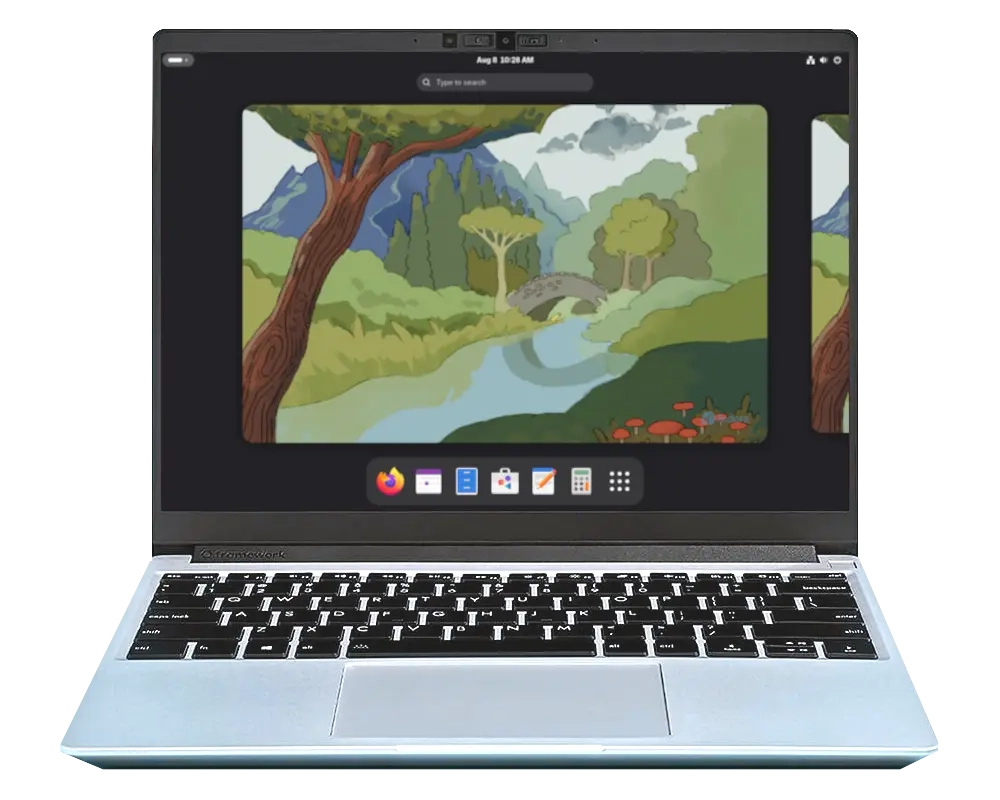
Security in Fedora is exceptional, with SELinux enabled by default (a military-grade security system that other distributions consider too complex). The Workstation edition is specifically designed for developers and IT professionals, with modern development tools pre-installed or easily accessible.
Fedora isn’t the most beginner-friendly option, but it’s not intimidating if you have some technical experience. It’s perfect for developers, IT professionals, or technical users who want to be on the technological cutting edge without sacrificing stability. The important warning: Fedora releases versions every six months with only 13 months of support, meaning frequent updates. It’s not “install and forget” like Ubuntu LTS or Zorin OS.
Prepare for the big leap
Migrating to Linux isn’t something you should do impulsively. Good preparation makes the difference between a smooth transition and a frustrating experience. Let me guide you through the essential steps before taking the leap.
Protect what matters
The first and most critical thing is to make a complete backup of your important documents. Not because Linux is going to delete anything (installations can preserve your files), but because any major change to your system justifies a preventive backup. While you’re at it, create a list of the applications you use regularly to identify their Linux equivalents later. Export your browser bookmarks and save configurations of critical applications you don’t want to lose.
Research before installing
Hardware compatibility on Linux is excellent in 2025, but it’s not perfect. Before installing, research whether your specific hardware has known issues on Linux. Wi-Fi cards from certain manufacturers, some specific NVIDIA GPUs, or multifunction printers may require additional steps. A quick search for “your model + Linux” on Google will save you headaches later.
Identify Linux alternatives for your Windows applications. Microsoft Office is replaced with LibreOffice or OnlyOffice. Photoshop has alternatives like GIMP for photo editing or Krita for digital art. Adobe Premiere translates to DaVinci Resolve (the free professional version is incredibly powerful) or Kdenlive. Notepad++ becomes Gedit, Kate, or straight-up Visual Studio Code. Utilities like 7-Zip, CCleaner, or Windows Media Player have native equivalents that often work better: File Roller comes included, BleachBit cleans the system, though this is usually not necessary, and VLC plays absolutely everything better than on Windows.
The important thing is that many popular applications already have native Linux versions: Chrome, Firefox, VS Code, Spotify, Discord, Steam, OBS Studio, VLC, GIMP, and dozens more. You’re not migrating to a software desert.
Try without commitment
All modern Linux distributions offer a Live mode that lets you try the complete system without installing anything. Create your bootable USB, boot from it, and spend an hour exploring. Verify that your Wi-Fi works, that the screen resolution is correct, that audio comes out the right speakers. Browse the internet, open documents, experiment with the system. This hour of exploration will tell you if the distribution is for you before making permanent changes.
Dual boot: The perfect safety net
If you have disk space, consider installing Linux in dual boot (dual boot) alongside Windows instead of completely replacing it. This allows you to keep Windows operational while gradually familiarizing yourself with Linux. You can choose which operating system to start each time you turn on your PC. Many users maintain this configuration permanently, using Linux for daily work and Windows only for specific applications without alternatives.
Dedicate time to explore Linux without pressure. Don’t try to replicate your Windows workflow immediately. Allow yourself to discover new and potentially better ways of doing things. Join help communities in your language like English Ubuntu forums, Linux subreddits, or Telegram groups dedicated to the distribution you chose. Having a place where you can ask questions without feeling judged is invaluable.
The moment is now
2025 is the perfect year to leave Windows behind. With distributions like Zorin OS and Ubuntu, the transition has never been smoother. You don’t need to be a computer expert, give up your favorite applications, or suffer with incompatible hardware. The barriers that existed a decade ago have simply vanished.
Thousands of users are making the switch every day and discovering a completely different world. A world where you have total control over your system and can decide exactly how every aspect of your computer works. Where your privacy is respected by default, without invasive telemetry reporting every click to corporate servers. Where you experience superior performance even on old hardware that Windows declared obsolete years ago. Where you don’t pay licenses or worry about forced updates that break your workflow. And where a passionate community of millions of people is genuinely willing to help you without judging you for being new.
The future of your computing experience is in your hands. In Linux you’re the one in charge, Windows limits you to what Microsoft decides you can do. The question isn’t whether migrating to Linux is the right decision. The question is: how much longer are you going to wait?
Ready to take control?
Happy Hacking!