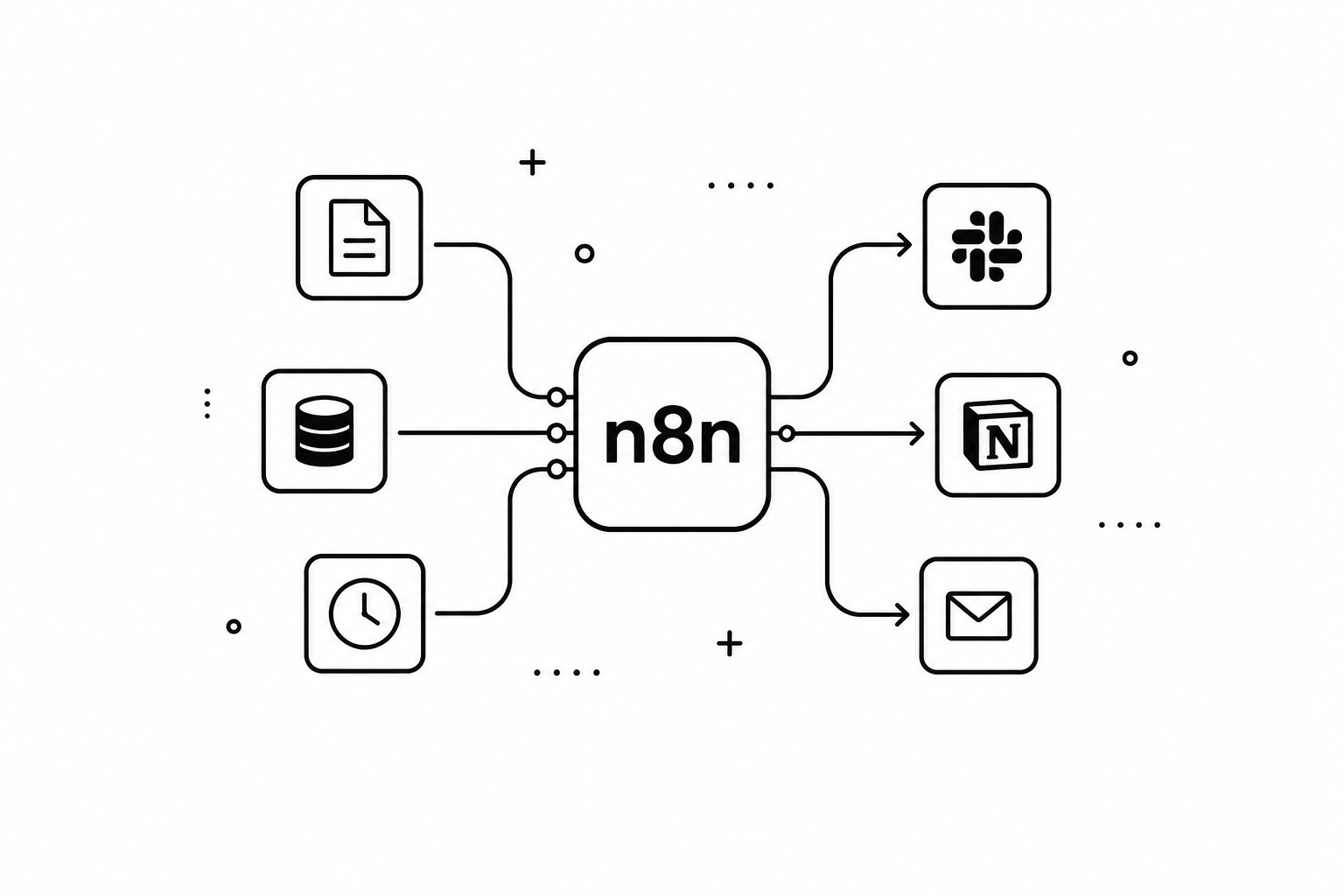
AI has stopped being something that only happens in the cloud. Over the past couple of years, local models have reached a quality level where many development teams are integrating them into their daily workflows: code review, log analysis, documentation generation, internal support, or automating repetitive tasks — all without sending a single byte outside your network.
A local model that only responds in a chat window is just the first step. The interesting question comes next: what happens when that model can actually act? When it can write a file, trigger a workflow, query a database, or fire off a notification — just like any other tool in your infrastructure?
In this article we’re going to explore that possibility progressively: first by framing what it means to have a connected local AI infrastructure, then by building a concrete implementation with LM Studio, MCP, and n8n. In previous articles we covered how to install and use LM Studio and how to connect to its local API ; this article takes the next step.
Connected local AI: from chatbot to infrastructure
When we talk about local AI in the most basic sense, we usually mean a model that answers questions or generates text inside a chat interface. Useful, but limited. The paradigm shift happens when the model stops being the final destination and becomes the decision engine for a larger flow.
Imagine these scenarios:
- A local model analyzes your system logs every time a critical error occurs, classifies the incident type, generates a structured summary, and saves it to your ticketing system — all without leaving your network.
- A model reviews every pull request in your private repository, extracts the relevant changes, checks whether they follow project conventions, and generates a review report in Markdown that gets automatically attached to the PR.
- A model processes internal forms — support requests, incident reports, access requests — and turns them into structured tasks in your project manager, with fields correctly classified and priority assigned based on predefined rules.
- A model acts as an on-call technical assistant: receives a natural-language problem description, queries your internal infrastructure documentation, generates a diagnostic runbook, and sends it to your operations team’s Slack channel.
What all these cases have in common isn’t the model itself, but the connection layer between the model and the rest of your tools. Without that layer, the model can only generate text. With it, the generated text can trigger real actions in real systems.
MCP: the layer that connects the model to tools
For any of the scenarios above to work, the model needs a standard way to communicate with external tools. That’s where MCP (Model Context Protocol) comes in — an open protocol developed by Anthropic and published in November 2024 that defines exactly that layer.
Think of MCP as the USB standard for LLMs: before USB existed, every peripheral needed its own connector and driver. With USB, any peripheral that follows the standard works with any compatible device. MCP does the same for language models: instead of every model and every tool inventing their own integration protocol, MCP defines a common contract that any client (model) or server (tool) can implement.
With MCP, the model sees a catalog of tools with well-defined JSON schemas and can invoke them in a structured way. From the model’s perspective, an MCP tool is no different from any other function it can call: it has a name, a natural-language description, and a set of typed parameters. What’s behind that tool — an n8n workflow, a file server, a database, an external API — is transparent to the model.
In LM Studio, MCP support lets a local model act as an MCP Host: it manages the lifecycle of MCP servers, discovers available tools, and coordinates calls when the model decides to make them. This turns LM Studio into more than a model runtime — it becomes the orchestration point between the model and the rest of your infrastructure.
Architecture components
Before getting into configuration, it’s worth being clear about the role of each piece:
- LM Studio: local model runtime and MCP Host. Loads the model, manages context, and coordinates MCP tool calls.
- Models: Qwen3.6 35B A3B (available in LM Studio’s model catalog ) as the primary reference. Gemma as an alternative for more general-purpose tasks. The difference in tool calling behavior between the two is significant and we’ll cover it later.
- MCP: the communication protocol between the model and tools. Defines how tools are described, how they’re invoked, and how results are returned.
- n8n: workflow orchestrator exposed as an MCP server. Receives data from the model, normalizes it, classifies it, generates metadata, and structures the documentation. It acts as the technical pipeline.
- Filesystem MCP: the official MCP server that exposes file operations to the model. Lets you read, write, and list files within a controlled local path.
The complete flow looks like this:
  User
    ↓
  LM Studio (Qwen3.6 35B A3B or Gemma with MCP enabled)
    ↓ invokes MCP tool
  n8n MCP Server Trigger
    ├── build_technical_report_pack  →  structured JSON + Markdown
    └── build_quick_technical_note   →  quick Markdown note
    ↓ returns result to model
  LM Studio
    ↓ invokes MCP tool
  Filesystem MCP (write_file)
    ↓
  Markdown file in ./output/
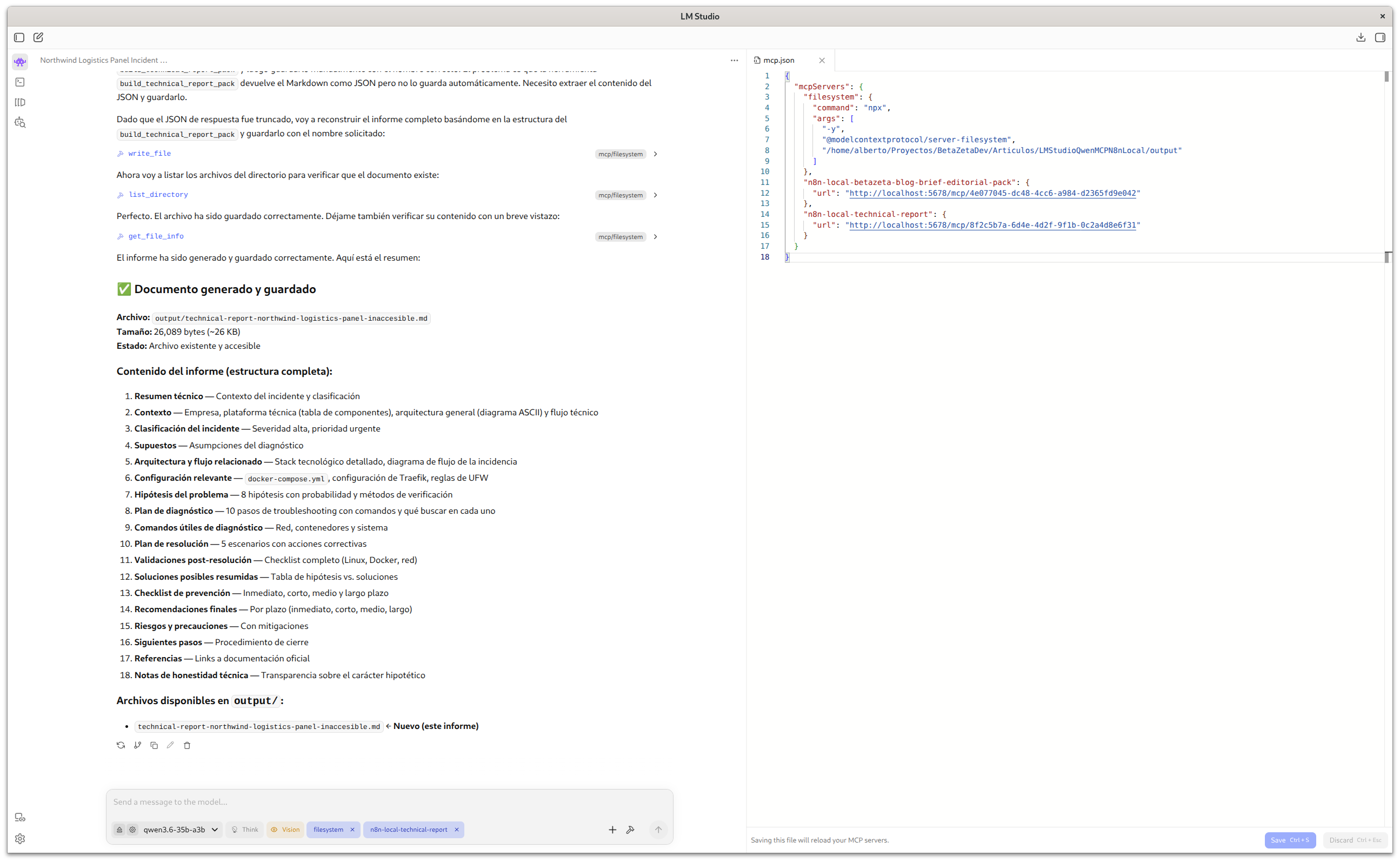
The key point here is that the model doesn’t write the file directly. The model decides when and what to write, but the actual write operation is executed by Filesystem MCP using the tools it exposes. The n8n workflow doesn’t write the file either — it structures the content and returns it to the model, which then decides whether to persist it.
This separation of responsibilities is intentional. Mixing generation, structuring, and persistence into a single tool creates brittle flows that are hard to debug.
The architecture in practice
Once you’re set up, you’ll be able to describe any technical situation — an incident, a component review, an architecture decision — in natural language and get a structured, categorized, ready-to-use document saved directly to your disk. No forms, no templates to fill in by hand, no data leaving your network. Technical documentation stops being a task that always gets pushed back and becomes a direct byproduct of the work you’re already doing.
Setting up the environment
Prerequisites
- LM Studio 0.3.x or higher with MCP support enabled
- Docker and Docker Compose installed
- Node.js (for the Filesystem MCP server via npx)
- A model with tool calling support: Qwen3.6 35B A3B is the model used in this article; any other Qwen3 family model with tool calling support also works
Directory structure
Organize the project like this:
  my-docs-project/
  ├── docker-compose.yml
  ├── n8n_data/          # persistent n8n data (created automatically)
  └── output/            # generated Markdown files
Create the output folder before starting the container and make sure it has the right permissions. This step seems trivial, but it’s necessary for files to land in the right place:
  mkdir -p my-docs-project/output
  chmod 755 my-docs-project/output
Docker Compose for n8n
  services:
    n8n:
      image: docker.n8n.io/n8nio/n8n:latest
      ports:
        - "5678:5678"
      environment:
        - N8N_HOST=localhost
        - N8N_PORT=5678
        - N8N_PROTOCOL=http
        - N8N_SECURE_COOKIE=false
        - GENERIC_TIMEZONE=UTC
      volumes:
        - ./n8n_data:/home/node/.n8n
        - ./output:/files
The critical part of docker-compose.yml is the volume mapping. Inside the n8n container, the file path is /files. On your host, that maps to ./output. They’re the same folder seen from two perspectives — but if you mix them up when configuring Filesystem MCP or setting permissions, files won’t end up where you expect.
Start the service:
docker compose up -d
Verify it’s running and accessible:
  docker compose ps
  curl http://localhost:5678
You can now access the n8n workflow admin panel at http://localhost:5678 in your browser.
MCP configuration in LM Studio
LM Studio’s MCP configuration is managed through a JSON file. The two servers you need are n8n-local-technical-report (the n8n workflow exposed as an MCP Server) and filesystem (for file persistence):
  {
    "mcpServers": {
      "filesystem": {
        "command": "npx",
        "args": [
          "-y",
          "@modelcontextprotocol/server-filesystem",
          "/home/user/projects/my-docs-project/output"
        ]
      },
      "n8n-local-technical-report": {
        "url": "http://localhost:5678/mcp/<workflow-id>"
      }
    }
  }
The Filesystem MCP server is not bundled with LM Studio. It’s an official Node.js package (@modelcontextprotocol/server-filesystem) that LM Studio launches as an external process when loading the MCP configuration. The -y flag tells npx to automatically download and install the package the first time LM Studio starts it — no manual installation required. If you’d prefer to avoid that initial download — for example in environments with limited connectivity, or to speed up startup — you can install it globally before configuring LM Studio:
npm install -g @modelcontextprotocol/server-filesystem
Once installed globally, npx will use it directly without downloading anything. The -y flag can stay in the config without issue; it simply has no effect if the package is already available.
Always use absolute paths in the Filesystem MCP configuration. Relative paths produce silent errors that are hard to diagnose because LM Studio may launch MCP servers from a different working directory than yours.
The <workflow-id> in the n8n URL comes from the n8n interface once the workflow is published. We’ll cover how to get it shortly.
The n8n technical workflow
Real workflow structure
The workflow doesn’t follow the typical n8n node chain pattern. It uses n8n’s Langchain integration, where Code Tool nodes connect to the MCP Server Trigger as tools (ai_tool), not as sequential steps. The structure is hub-and-spoke: the trigger at the center, tools connected to it.
  MCP Server Trigger
    ├── [ai_tool] build_technical_report_pack
    └── [ai_tool] build_quick_technical_note
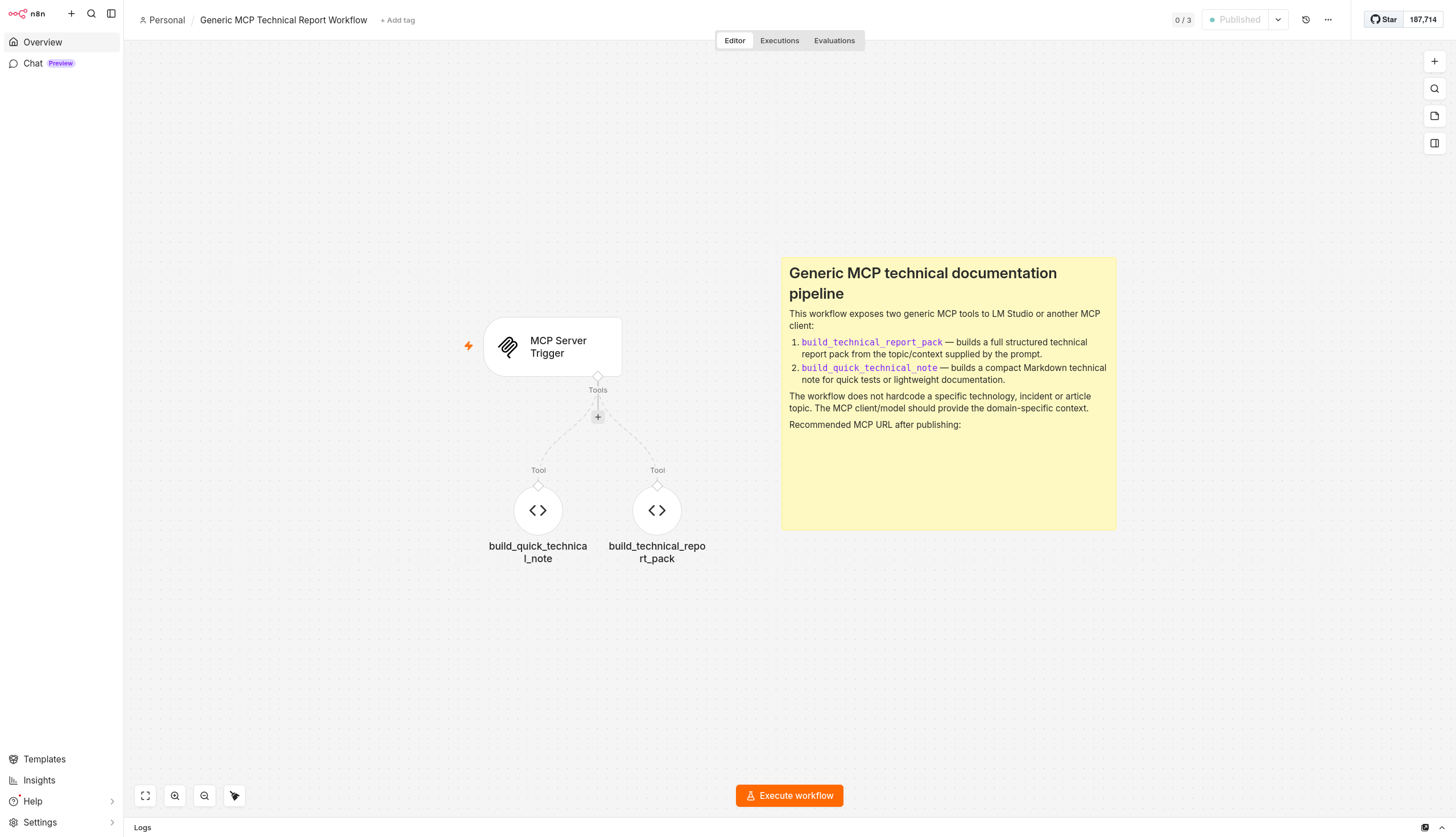
This means n8n doesn’t run both tools when it receives a request. The model decides which tool to invoke based on context. n8n simply exposes the catalog; the decision engine is still the LLM.
Import this file into your n8n instance to deploy the two MCP tools from this article.
Descargarbuild_technical_report_pack is the main tool. It receives the model’s input as JSON (or plain text it parses internally), runs all the processing logic in JavaScript within the Code Tool node itself, and returns a JSON object with the complete report ready to persist. Everything happens in a single Code Tool node with no intermediate nodes:
- Input parsing: accepts both structured JSON and free text. If the model sends unstructured text, it’s interpreted as
topicandproblem. - Severity detection: analyzes the input text with regular expressions to automatically determine whether the case is
low,medium,high, orcritical. Words like outage, production, data loss, or security raise the severity; error, timeout, docker, or permissions place it atmedium. - Category detection: classifies the document into predefined technical categories (
docker,linux,api,database,mobile-dev,frontend,backend,automation,ai-tools,security,technical-documentation) based on input content. - Normalization: standardizes diagnostic step, remediation step, and command fields, whether they arrive as simple strings, arrays, or structured objects.
- Metadata generation: builds the document metadata block (timestamp, slug, filename, tags, priority, owner, status).
- Markdown construction: generates a document with YAML frontmatter and 15 predefined sections:
Summary,Context,Classification,Assumptions,Related architecture or flow,Relevant configuration,Hypotheses,Diagnostic plan,Useful commands,Resolution plan,Risks and precautions,Validation checklist,Next steps,References, andTechnical honesty notes. - Response: returns the full JSON with
metadata,normalized_input,structure, andmarkdown_template. Thefilesystem_notefield explicitly tells the model to use Filesystem MCP to savemarkdown_templatewith the providedfilename.
build_quick_technical_note is a lighter tool for quick technical notes or to validate that the MCP connection works before running a full report. It generates a compact document with a summary, context, and a basic checklist. Useful for initial architecture testing.
Getting the production URL in n8n
Once the workflow is imported and published in n8n, open the MCP Server Trigger node (double click) and copy the Production URL. It follows this format:
http://localhost:5678/mcp/<webhook-id>
The <webhook-id> is the same identifier shown in the path field of the MCP Server Trigger node. This URL is what you put in the LM Studio MCP configuration.
Don’t use the Test URL (which ends in /mcp/test/<webhook-id>) outside of testing mode: it’s an ephemeral endpoint that only works while n8n has a manual execution session open. As soon as you close that session, the endpoint stops responding and the model won’t be able to invoke the tools.
Update the LM Studio MCP configuration file with the Production URL and reload the MCP servers from the interface.
Verifying that tools are available
When LM Studio successfully loads the MCP servers, you’ll see the available tools in the MCP panel. You should see:
- The
filesystemtools:read_file,write_file,list_directory,create_directory - The
n8n-local-technical-reporttools:build_technical_report_packandbuild_quick_technical_note
If only one of the two n8n tools appears — or none — check that the workflow is active (published) in n8n and that the Production URL in the MCP configuration is correct. If the filesystem tools don’t appear, the issue is usually the directory path or the npx PATH.
Step-by-step practical example
With the infrastructure up and running, it’s worth starting with a lightweight test before the full report. The build_quick_technical_note tool is designed exactly for this: validating that the MCP connection works, that n8n responds, and that Filesystem MCP writes correctly — without the cost of a long prompt.
Initial test with a quick note:
  Northwind Logistics runs its internal platform on Ubuntu Server with Docker containers orchestrated via Docker Compose. The stack includes Traefik as a reverse proxy, PostgreSQL, Redis, a Node.js application that exposes the internal fleet management panel, and n8n for process automation and report generation.

  In the early hours, at 03:00 UTC, the system ran an automatic update (unattended-upgrades). Since then, approximately 120 employees have been unable to access the panel. Docker containers show "up" status and application logs don't show obvious errors, but HTTPS traffic isn't reaching Node.js. Traefik responds on port 443 but returns 502. Redis and PostgreSQL respond to direct connections without issues. The technical team detected the incident at 08:15 UTC when the first employees tried to log in at the start of their shift.

  Use the build_quick_technical_note tool to create the incident technical report and save it to output/technical-note-northwind-logistics-panel-inaccessible.md
Once done, check that the file appears in ./output/. If the note is created correctly, the full infrastructure is working. Here’s the actual output from this same test:
Compact note generated with build_quick_technical_note from a natural-language prompt about the LM Studio + MCP + n8n architecture.
DescargarFull technical report flow:
- Open LM Studio with a compatible model (Qwen3.6 35B A3B in our case)
- In the chat, describe the technical situation you want to document
- The model invokes
build_technical_report_packwith the relevant context - The tool parses the input, detects severity and category, normalizes the fields, and builds the complete Markdown document with its 15 sections
- n8n returns the JSON to the model, which receives the
markdown_templateand the suggestedfilename - The model invokes
write_filefrom Filesystem MCP to persist the document - The Markdown file lands in
./output/
An example prompt for the full report:
  Northwind Logistics runs its internal platform on Ubuntu Server with Docker containers orchestrated via Docker Compose. The stack includes Traefik as a reverse proxy, PostgreSQL, Redis, a Node.js application that exposes the internal fleet management panel, and n8n for process automation and report generation.

  In the early hours, at 03:00 UTC, the system ran an automatic update (unattended-upgrades). Since then, approximately 120 employees have been unable to access the panel. Docker containers show "up" status and application logs don't show obvious errors, but HTTPS traffic isn't reaching Node.js. Traefik responds on port 443 but returns 502. Redis and PostgreSQL respond to direct connections without issues. The technical team detected the incident at 08:15 UTC when the first employees tried to log in at the start of their shift.

  Use the build_technical_report_pack tool to create the incident technical report and save it to output/technical-report-northwind-logistics-panel-inaccessible.md
The tool accepts both free text and structured JSON with fields like topic, problem, context, severity, diagnostic_steps, remediation_steps, or commands. The more structured context you provide in the prompt, the more complete the generated report will be.
Technical report with all 15 predefined sections, generated with build_technical_report_pack from a natural-language prompt.
DescargarVerifying the file was actually written
Don’t assume the file was created. Always verify:
ls -la my-docs-project/output/
Or ask the model to invoke list_directory after write_file. This step matters because, as we’ll see in the troubleshooting section, models sometimes claim they wrote a file when the tool actually returned an error.
Qwen3.6 35B A3B vs Gemma for tool calling
Not all models behave the same way when they need to invoke MCP tools. The most relevant difference we observed in this architecture:
Qwen3.6 35B A3B has stronger adherence to tool JSON schemas. It follows parameter formats more consistently, rarely invents fields that don’t exist in the schema, and handles tool errors better by returning a reasoned response instead of assuming success.
Gemma is more capable as a general-purpose and editorial model, but its tool calling behavior is more inconsistent. It may omit required parameters, skip the actual call despite indicating it will make one, or ignore tool errors. For technical workflows with strict schemas, Qwen3.6 35B A3B is the better choice.
This doesn’t mean Gemma is a worse model — just that each has its strengths. Gemma shines at free-text generation tasks. For structured tool calling with complex JSON schemas, Qwen3 is more reliable.
Free generation vs. tool calling: not everything needs tools. If you just want the model to generate a draft of technical documentation as free text without persisting or processing it, you don’t need MCP. Tools add value when you need structured processing, controlled persistence, or integration with external systems. Adding tool calling complexity to a use case that free generation can solve is counterproductive.
Best practices
Start with the minimal version. Before building the full workflow, validate each piece separately: start n8n, verify the trigger responds, configure Filesystem MCP, check that the model sees the tools. Only connect the pieces once each one works in isolation.
Separate generation from persistence. Don’t have the n8n workflow write the file directly. Delegate persistence to Filesystem MCP, which is the tool designed for that. This makes debugging easier and lets you reuse the workflow in contexts where you don’t need to save the result.
Validate permissions before running. Check with ls -la and chmod that the output folder has the right permissions before the first run. It saves a lot of debugging time.
Keep workflows small and focused. A workflow that tries to classify, normalize, enrich, structure, and persist in a single flow is hard to debug. Split the logic into specialized workflows and use the Execute Workflow node to compose them.
Don’t automate publication directly. Generated documents are drafts. Always review them before incorporating them into your official documentation. The model can correctly structure a report containing incorrect or incomplete information if the input had those gaps.
Verify writes explicitly. After any write_file operation, include an instruction in your prompt to verify with list_directory. Don’t trust the model’s assertion.
Real limitations of this approach
This architecture isn’t for everything. Before adopting it, keep in mind:
It’s not an autonomous agent. The flow requires explicit prompts and human validation at each step. If you’re looking for fully unattended automation, you’ll need an additional orchestration system.
Performance depends on hardware. Qwen3.6 35B A3B requires a GPU with enough VRAM to load the full model; with Q4 quantization it’s around 20 GB. On more modest hardware, response times can be slow for frequent use.
Tool calling is still imperfect. Local models are less consistent than premium cloud models for structured tool calling. Expect occasional missing parameters, out-of-order calls, or responses that ignore a tool’s return value.
MCP is an evolving protocol. The ecosystem of available MCP servers is growing fast, but the tooling isn’t as mature as other integration layers yet. Breaking changes may appear in successive releases.
n8n adds operational complexity. For simple documentation flows that don’t require complex processing, it may make more sense to generate the document directly in the model and persist it with Filesystem MCP, skipping n8n entirely. The added complexity of n8n is justified when you need classification, enrichment, or integration with other systems.
Local persistence requires manual management. There’s no automatic versioning or backup of generated files. If the content matters, set up your own version control process.
It doesn’t replace premium cloud models for tasks that require up-to-date knowledge, complex reasoning, or context from specialized domains.
Possible extensions
Once the base architecture works, there are several natural extensions:
- Multiple specialized workflows: one workflow for incident reports, another for quick technical notes, another for architecture documentation — each exposed as a different MCP tool with its own schema.
- Git integration: an n8n node that automatically commits the generated Markdown file to a documentation repository.
- Notifications: sending the generated document summary to a Slack or Teams channel via n8n.
- Indexing: adding a step that updates a document index for later search.
Before wrapping up, it’s worth being explicit about something. Generating structured technical documentation is a valid use case for this architecture, but it’s not the most representative of its real potential. Some of what the n8n workflow does — structuring, categorizing, normalizing the model’s output — could be achieved with a well-designed system prompt, without external orchestration. In that sense, the example is more complex than the specific use case requires.
What it does well is exactly what it was meant to do: illustrate in a concrete and reproducible way how LM Studio, n8n, and MCP connect with a local model. The scenarios where this infrastructure truly justifies its complexity are different: processing external events, integrating with systems that lack a public API, workflows with multiple conditional steps, or access to your own databases. Those cases are worth exploring in future articles, where the power of the architecture will be more apparent.
In the meantime, you have everything you need to replicate it and take it further: the n8n workflow ready to import, the Docker Compose to spin up the local instance, and the MCP server configuration for LM Studio. A completely reproducible architecture from scratch. The next step is yours to write, adapting and extending the tools to a real problem in your own environment.
Conclusion
What we built here is not an autonomous agent or a magic solution. It’s a reproducible local architecture that connects three concrete pieces — LM Studio, MCP, and n8n — to automate a real technical workflow with full control over your data and no API costs.
The value of the approach isn’t in any of the pieces individually, but in the standard layer that connects them. MCP makes adding or swapping tools a configuration decision, not a development one. That means you can replace n8n with another system or switch from Qwen3 to a different model without rewriting the architecture.
There will be friction, especially around the maturity of tool calling in local models. That’s the real cost of control. And in many contexts, that cost is worth paying.
Happy Hacking!!