Artificial intelligence keeps transforming the way we work, but there’s a catch with how most of us use it: we rely on cloud services that come with recurring costs, privacy concerns, and the constant need for an internet connection. But it doesn’t have to be this way. What if you could run powerful AI models right on your own computer, completely free and without sending your data to any external server?
In this article, we’ll explore how to set up your own local AI environment using LM Studio, an application that lets you download, manage, and run state-of-the-art language models on your machine. We’ll cover everything from installation to a hands-on example with a coding-focused model.
Cloud vs. local: Which one is right for you?
Cloud-based AI services like ChatGPT, Claude, or Gemini offer impressive capabilities. Their most advanced models have access to massive amounts of parameters and computing resources that are hard to replicate at home. However, all that power comes with significant trade-offs.
| Aspect | Cloud models | Local models |
|---|---|---|
| Cost | Subscription or pay-per-use (can add up fast) | Free (just your hardware and electricity) |
| Privacy | Data passes through external servers | Your data never leaves your computer |
| Connectivity | Requires internet | Works offline |
| Power | Access to the most powerful models | Limited by your hardware (GPU/RAM) |
| Model size | No limits, massive models | Smaller, quantized models |
| Capabilities | Advanced multimodal (vision, audio) | Mostly text, some multimodal options |
| Updates | Automatic and constant | Manual |
| Setup | Ready to use | Requires initial configuration |
| Control | Subject to policies and terms of service | Full control over the model |
| Usage limits | API restrictions and quotas | No limits |
| Availability | May change based on provider | Always available on your machine |
The good news is that local models have come a long way. Today, models like QWEN 3 Coder or GPT OSS deliver surprising capabilities that make them perfectly viable for daily use, coding, and even building autonomous agents. The key is choosing the right model for each task.
System requirements
Before we dive in, let’s talk hardware. AI models are resource-intensive, especially when it comes to video memory (VRAM) if you want to leverage your GPU.
Minimum recommended specs
| Component | Minimum | Recommended |
|---|---|---|
| RAM | 16 GB | 32 GB or more |
| VRAM (GPU) | 6 GB | 12 GB or more |
| Storage | 50 GB free | SSD with 100+ GB |
| CPU | Any modern processor | 8+ cores |
About your graphics card
- NVIDIA: Best support via CUDA. GPUs like RTX 3060 (12GB), RTX 3080, RTX 4070 or higher are ideal.
- AMD: Supported through ROCm (mainly on Linux).
- Apple Silicon: Excellent performance on M1/M2/M3 thanks to Metal.
- Intel Arc: Experimental support but improving.
If you don’t have a dedicated GPU, you can still run models on CPU only, though it will be significantly slower. For smaller models (7B parameters or less), it may still be workable.
Cross-platform
LM Studio is available for Windows, macOS, and Linux. This tutorial focuses on Linux, but the steps are virtually identical on any operating system thanks to the unified graphical interface.
LM Studio: Your control center for local AI
Imagine having an app that lets you download AI models as easily as downloading a movie, and then chat with them just like you would with ChatGPT—but without internet and without paying a dime. That’s exactly what LM Studio does.
This application acts as a hub where you can browse hundreds of available models, download the ones you want with a single click, and run them on your computer. It includes a built-in chat interface to interact with the models, and if you’re more technical, it can also run as an OpenAI-compatible API server, letting you connect it to other applications and tools.
Installation
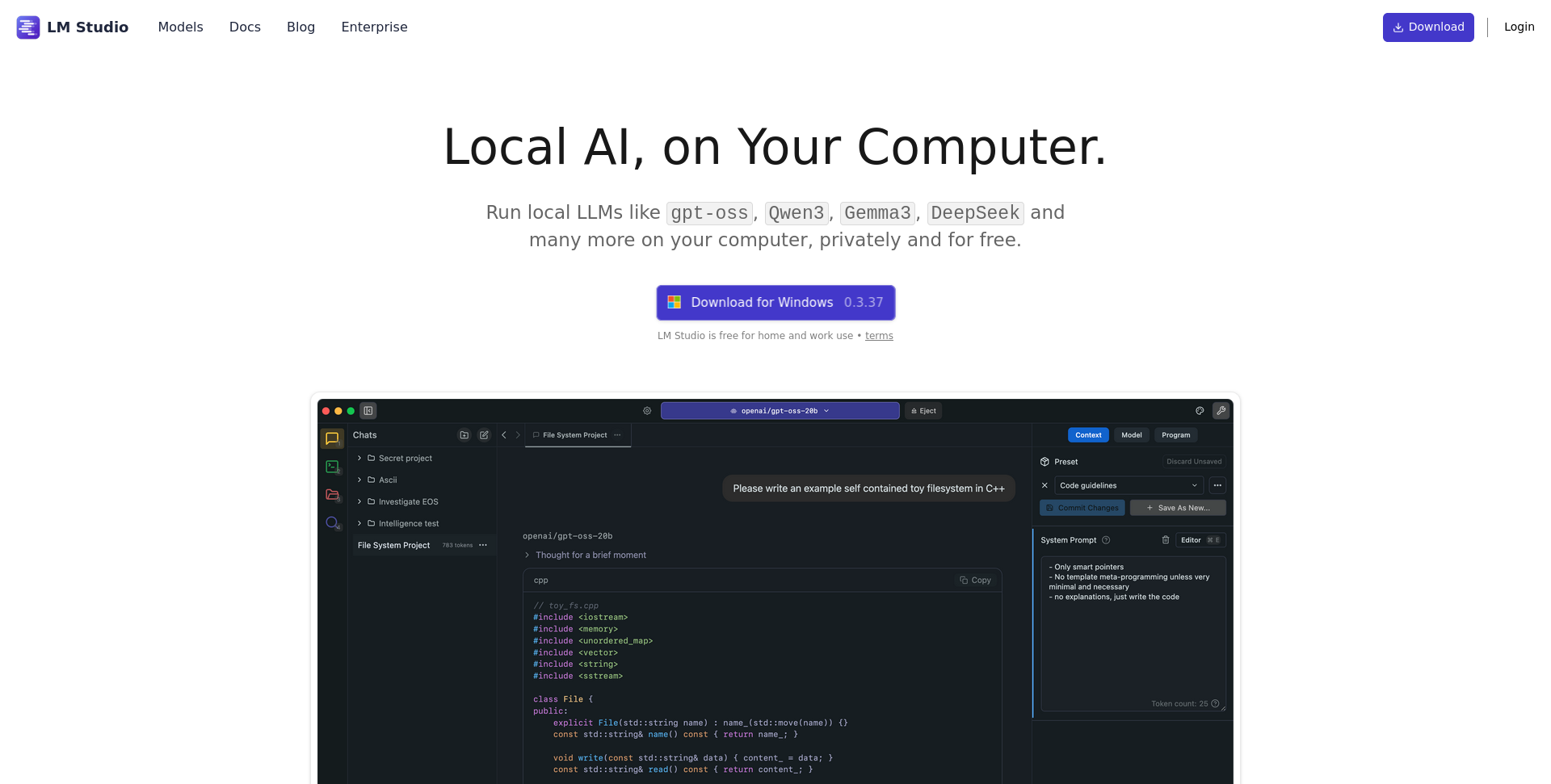
Installation is as simple as download and run. Head to lmstudio.ai, grab the version for your operating system (Windows, macOS, or Linux), and open it. On Linux, you can use the .deb file for Debian/Ubuntu-based distributions, or the AppImage that works on any distro without needing to install anything.
Main interface
When you open LM Studio, you’ll see an interface organized into sections on the left sidebar:
- Chat: Talk to the models you have loaded
- Developer: Advanced features for developers, including exposing the model as an API for use with other applications
- My Models: Manage the models you’ve already installed
- Discover: Browse and download new models
Installing QWEN 3 Coder: Your local coding assistant
QWEN 3 Coder 30B is a model developed by Alibaba, specifically optimized for programming tasks. With 30 billion parameters (that’s what the B stands for—billions), it offers advanced capabilities for writing, explaining, and refactoring code.
Understanding model versions
When downloading models, you’ll see names like Q4_K_M or Q8_0. This indicates the quantization level: a process that compresses the model so it takes up less space and memory. The number after the Q indicates the bit precision (Q4 = 4 bits, Q8 = 8 bits). Lower numbers mean more compression but slightly lower quality. For most use cases, Q4_K_M offers an excellent balance.
Downloading from LM Studio
-
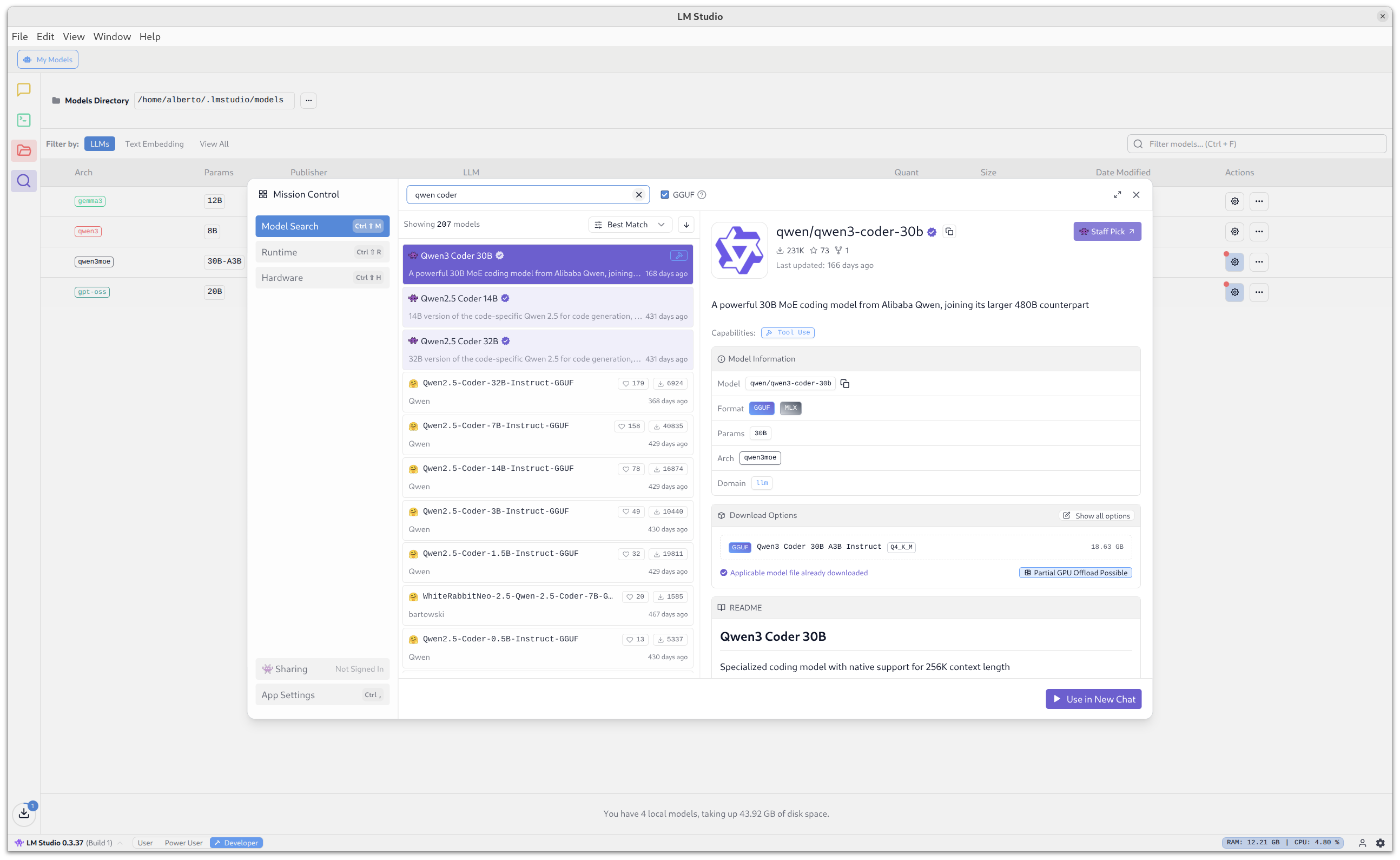
Open LM Studio and go to the Discover section
-
Search for
qwen3-coderand select Qwen3 Coder 30B -
Click Download to download the model and wait for it to complete
How do I use it?
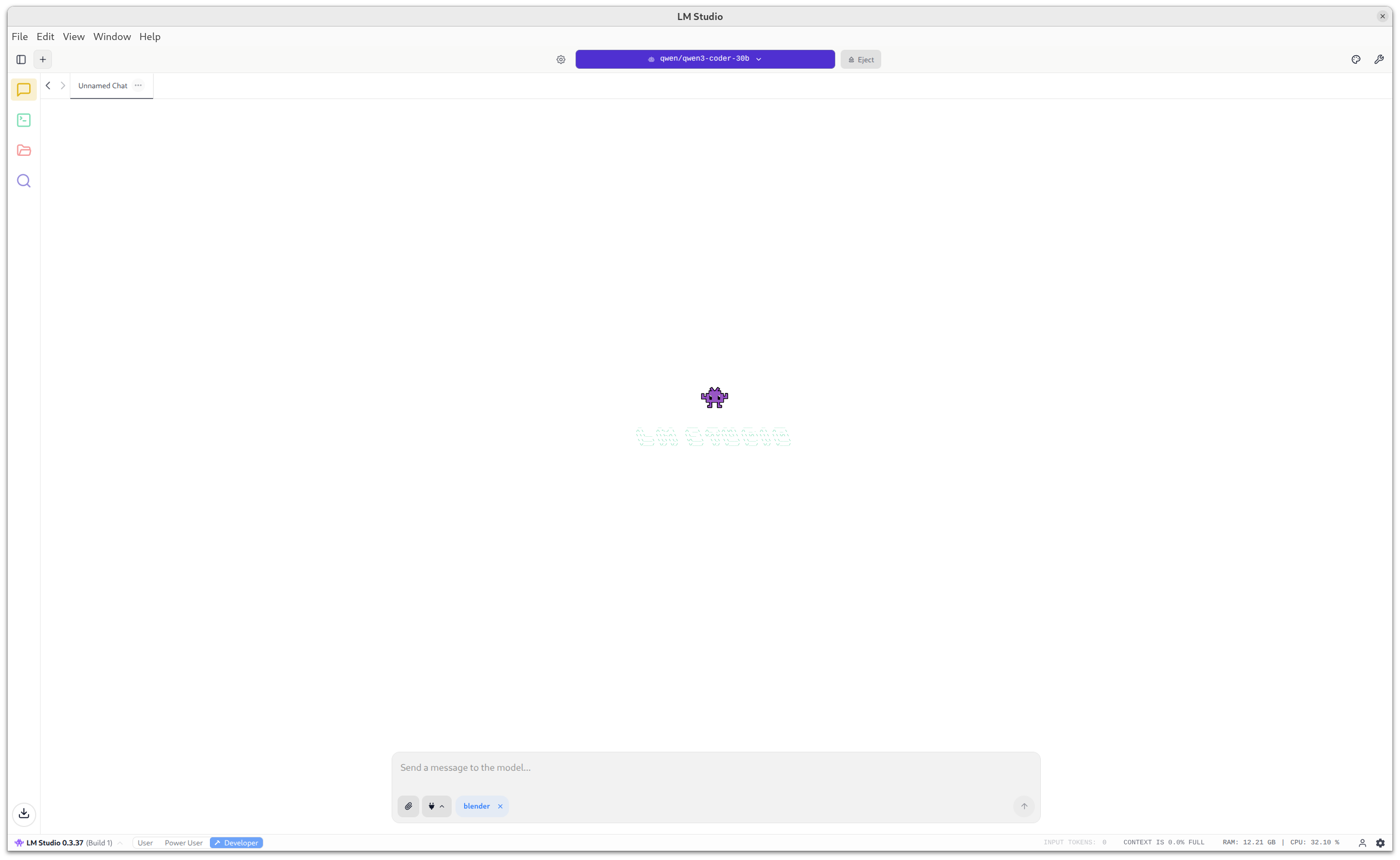
Once downloaded, go to the Chat section and select the QWEN 3 Coder model from the model selector at the top.
Building a Tetris-like game with a single prompt
To showcase QWEN 3 Coder’s capabilities, we’re going to create a complete browser-based Tetris game using just a simple prompt. For better results, a more detailed description is recommended.
The prompt
Create a browser-based Tetris game using only standard, lightweight frameworks, faithfully implementing the full mechanics of the original classic game, including randomized tetromino generation and a complete scoring system.
The result
In the video below, you can see how QWEN 3 Coder generates a fully functional Tetris game in a matter of seconds. The generated code includes all the requested features and works correctly without any modifications.
This is the kind of task where local models shine: self-contained projects, frontend code, automation scripts, and well-defined problems.
Free “ChatGPT”: An open-source general-purpose model
Beyond specialized models like QWEN for coding, LM Studio lets you install general-purpose models like GPT OSS 20B, from OpenAI itself—yes, like ChatGPT—an excellent choice for varied tasks.
What is GPT OSS?
GPT OSS (Open Source Software) is a 20-billion-parameter model designed to be versatile. Unlike QWEN 3 Coder, which is specifically optimized for code, GPT OSS offers:
- Natural conversations: Better suited for chatbots and general assistants
- Creative writing: Text generation, stories, emails
- Text analysis: Summaries, translations, information extraction
- General reasoning: Q&A across various topics
- Basic coding: Can generate code, though not as specialized as QWEN
Installing GPT OSS
The process is identical to QWEN:
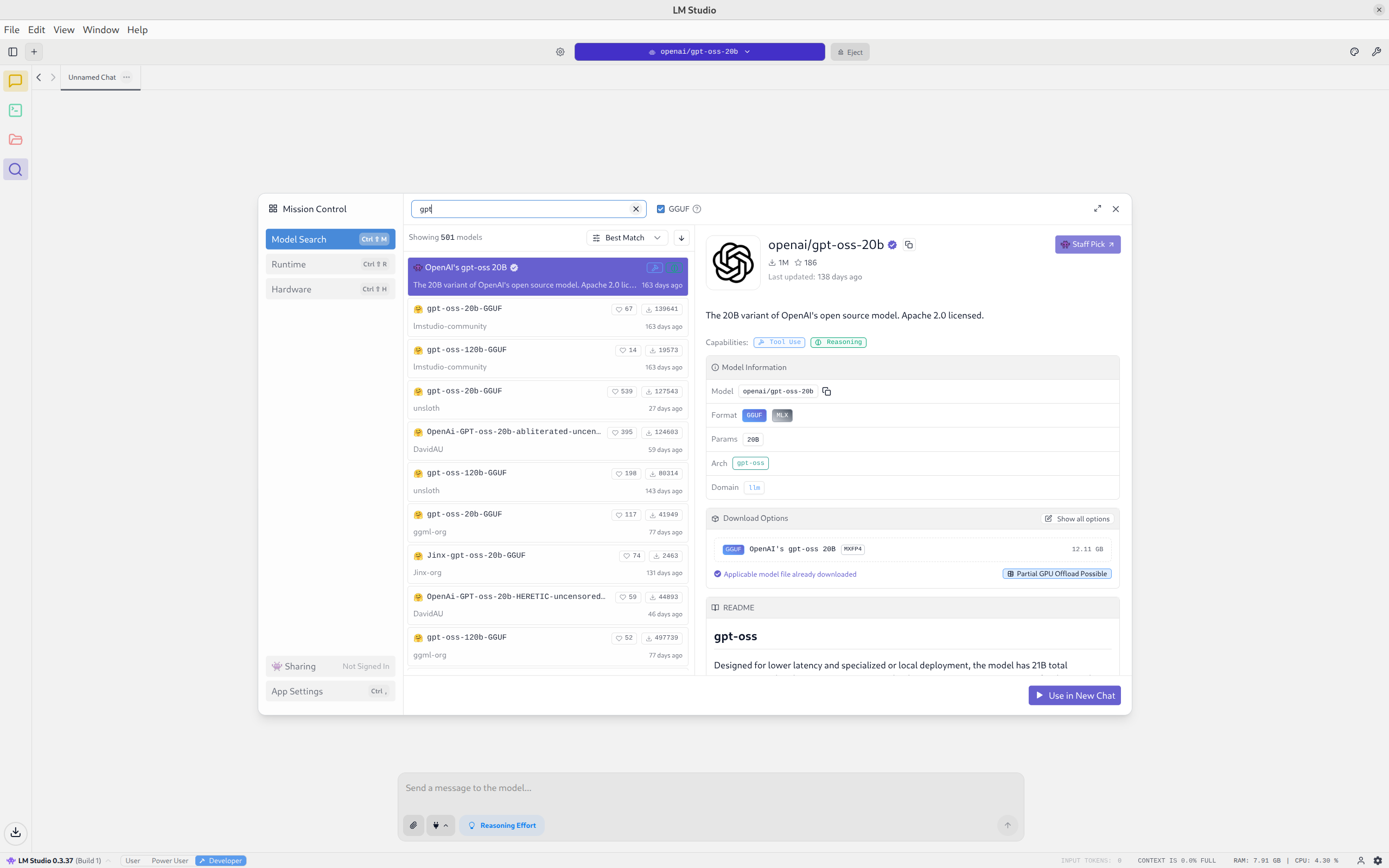
- Go to Discover in LM Studio
- Search for
openai/gpt-oss-20b - Download and you’re done
Key differences: QWEN Coder vs GPT OSS
| Aspect | QWEN 3 Coder 30B | GPT OSS 20B |
|---|---|---|
| Specialization | Programming | General purpose |
| Best for | Writing, refactoring, and explaining code | Conversations, text, analysis |
| Size | 30B parameters | 20B parameters |
| Recommended VRAM | 12-16 GB | 10-14 GB |
| Output format | Structured code | Flowing text |
When to use each one?
-
Use QWEN 3 Coder when:
- You need to write or modify code
- You want technical explanations of algorithms
- You’re debugging or refactoring
- You’re developing scripts or automations
-
Use GPT OSS when:
- You need a conversational assistant
- You’re working on content writing
- You want to summarize documents
- You need translations or text analysis
The flexibility of LM Studio allows you to have both models installed and switch between them depending on the task at hand.
Summary
We’ve covered the full journey from understanding the differences between cloud and local AI to getting two powerful models running on our own computer:
- LM Studio as the central platform for managing local models
- QWEN 3 Coder for all your programming tasks
- GPT OSS for general and conversational use
Local AI has matured enough to be a real alternative to cloud services for many use cases. It won’t fully replace models like GPT, Gemini, Claude, Perplexity, or Grok for highly complex tasks, but for day-to-day work, it offers an unbeatable combination of privacy, zero cost, and autonomy.
Coming up next
This is just the beginning of a much broader world. In future articles in the Personal AI series, we’ll explore how to take these models to the next level using MCP (Model Context Protocol) to connect them with external tools and give them real superpowers. We’ll also look at how to integrate your local AI directly into the browser so it’s accessible from any webpage, and how to expose LM Studio as an API server to use it from virtually any application.
The future of AI isn’t just in the cloud. It’s also on your computer, under your complete control.
Happy Hacking!